
We’ve covered how to create a workspace, tour the Application Builder, build basic page components, and debug what’s happening under the hood. Before we build your very first complete application, there are two more foundational pieces worth understanding: how an application’s overall configuration works, and what the broader APEX development environment actually offers beyond the Application Builder itself.
"Application-level settings apply everywhere inside that app, all at once — get them right early, and you'll rarely need to touch them again."
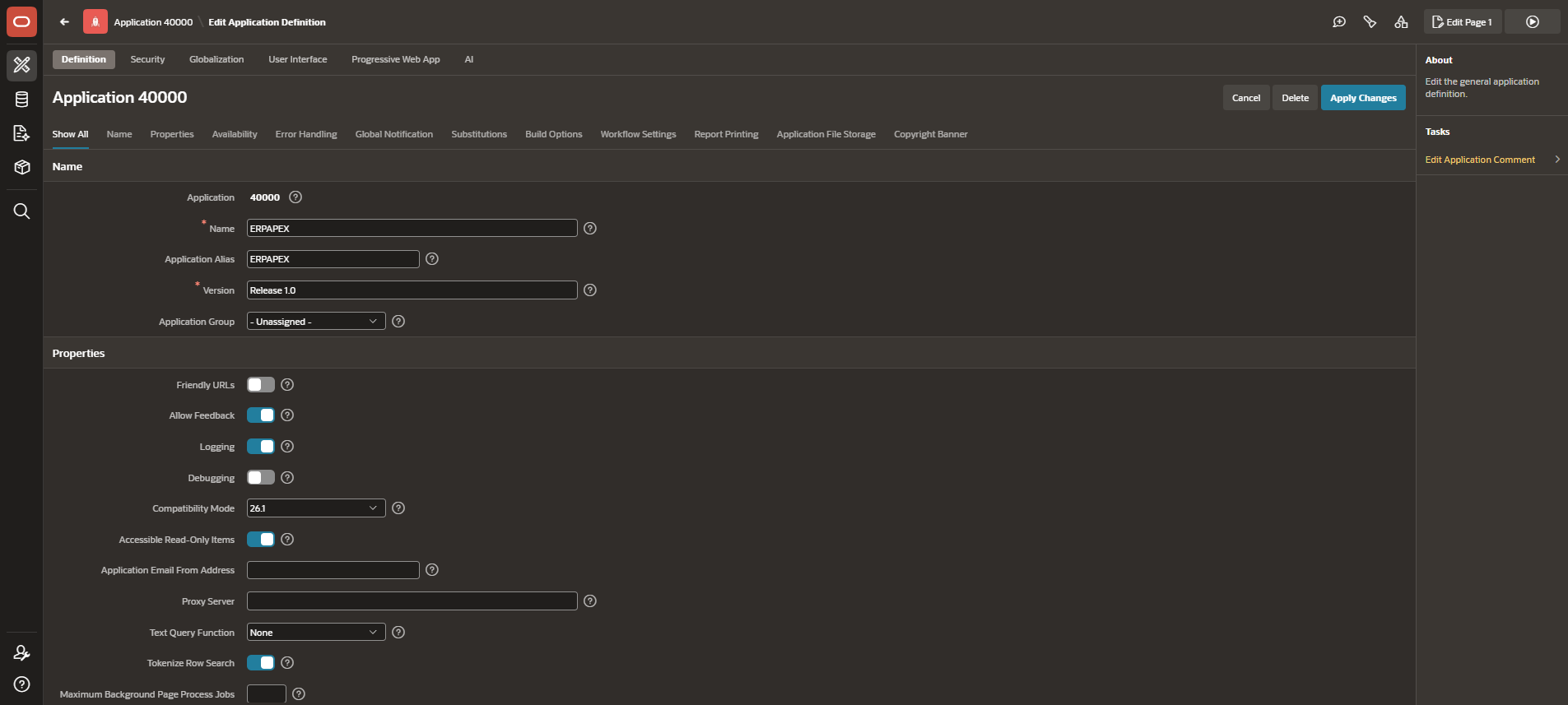
Application Properties sit one level above individual pages — they’re the settings that shape how your entire application behaves, not just one screen within it. You’ll find these by clicking the Edit Application Definition icon from your Application Builder’s app-level view.
Part 1: Application Properties & Settings
Key Property Categories
General — Application ID (in our case, 40000), name, alias, and availability status. The Application ID becomes part of every URL your users see, exactly as we covered in the previous post’s URL structure breakdown — every page link in ERPApex, for example, begins with f?p=40000.
Authentication — which authentication scheme the entire application uses by default (we’ll cover authentication schemes in depth during Week 2’s security topics, but this is where the assignment happens at the app level).
Definition — build status (whether the app is actively being developed or run-only), version tracking, and compatibility mode, which controls which APEX engine behaviors your app follows as Oracle updates the platform.
Security — session timeout settings, and application-level protections like Session State Protection, which we touched on briefly in the debugging post.
Globalization — language, date format, and currency settings for the entire app — important if you’re building something that needs to support multiple locales down the line, and much easier to configure correctly now than retrofit later.
Step-by-Step: Reviewing Your Application’s Properties
- From the Application Builder home page, click into your application (Application ID 40000).
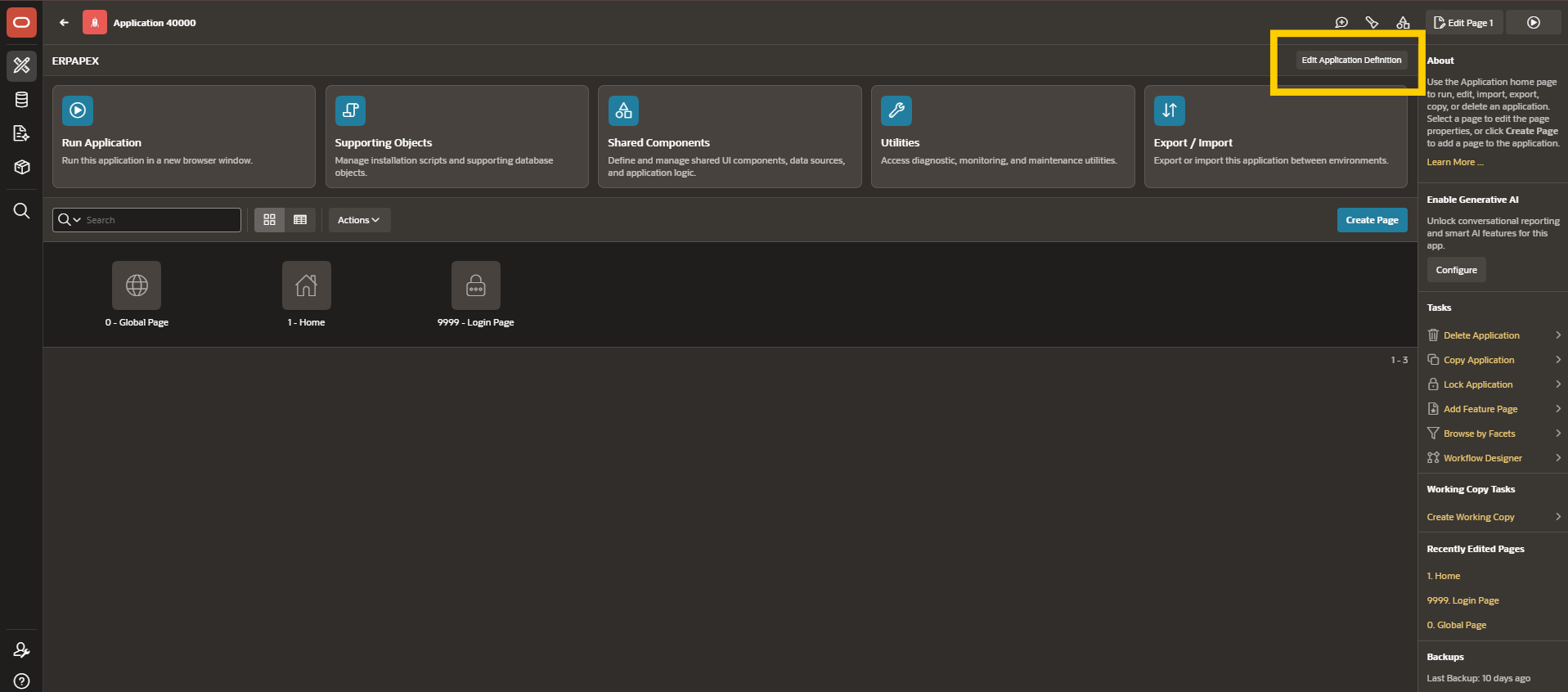
- Click the Edit Application Definition button, found near the top of the app’s page list view.
3. Review each tab — General, Authentication, Definition, Security, Globalization — even if you don’t change anything yet. Getting familiar with what’s here now means you’ll recognize it immediately when a future post asks you to adjust a specific setting.
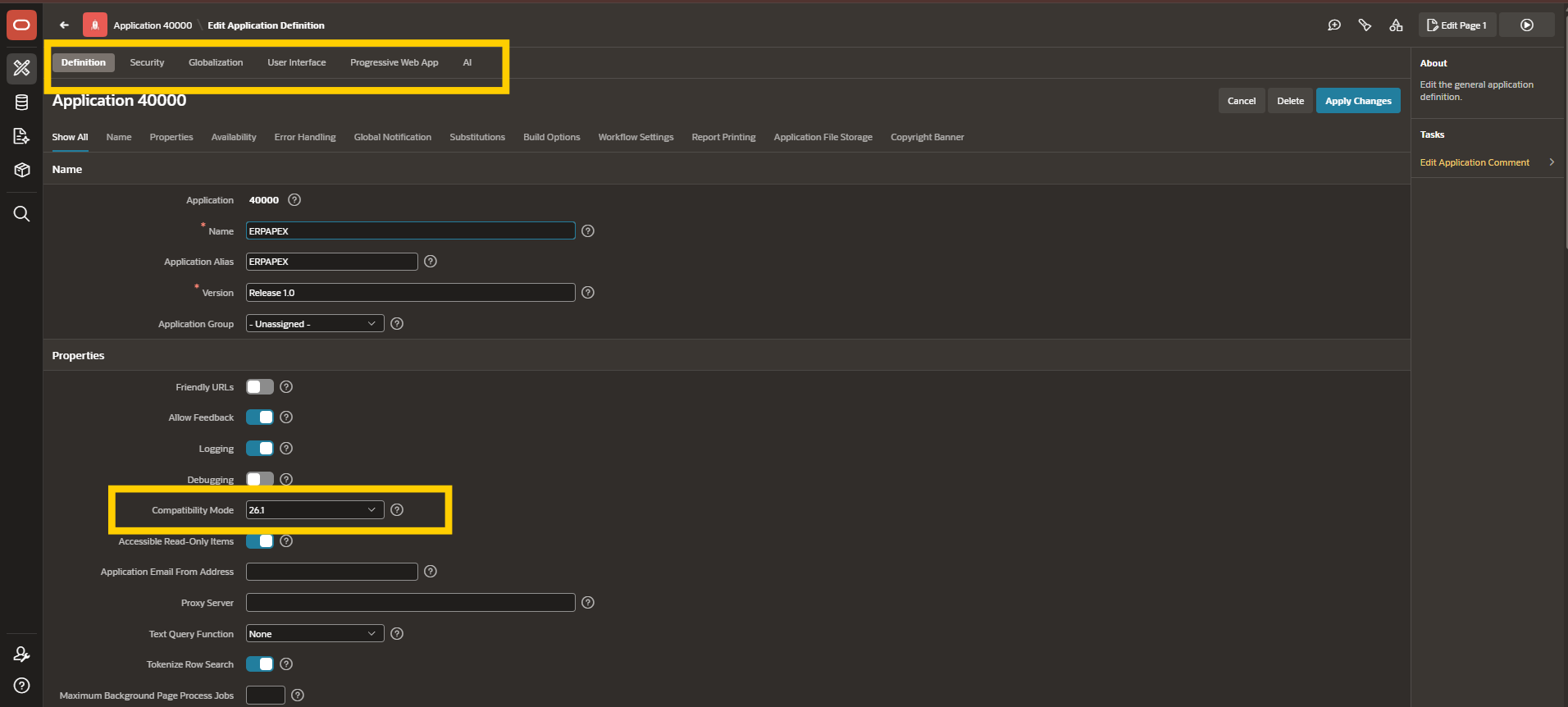
4. Pay particular attention to Compatibility Mode under the Definition tab — this determines which version of APEX’s rendering engine behaviors your app follows, and mismatches here are a common source of subtle bugs when moving an app between APEX versions.
Part 2: The APEX Development Environment, Beyond the Application Builder
The Application Builder is where you spend most of your time, but APEX’s broader development environment includes several other tools worth knowing about from day one.
SQL Workshop gives you direct database access without leaving APEX — SQL Commands for running ad-hoc queries, Object Browser for exploring tables and their structure visually, and Utilities for tasks like generating DDL or comparing schemas.
RESTful Services (part of SQL Workshop in most versions) lets you expose your database logic as REST endpoints directly from APEX — useful when other applications, or even AI agent tooling in APEX 26.1’s newer features, need to interact with your data.
Team Development provides lightweight project management — feature tracking, bug tracking, and milestones — built directly into your workspace, genuinely useful if you’re not already using a separate external tool for this.
App Gallery contains Oracle’s sample applications, which are worth exploring even briefly. Seeing how Oracle’s own developers structure a working application — their component choices, their naming conventions — teaches patterns faster than reading documentation alone.
Quick Example: Using SQL Workshop to Check Your Schema
Since we’re working with Application 40000, here’s a quick, practical example of SQL Workshop in action:
- From the Application Builder home page, navigate to SQL Workshop → SQL Commands.
- Run a simple query to confirm your schema’s tables exist:
SELECT table_name
FROM user_tables
ORDER BY table_name;
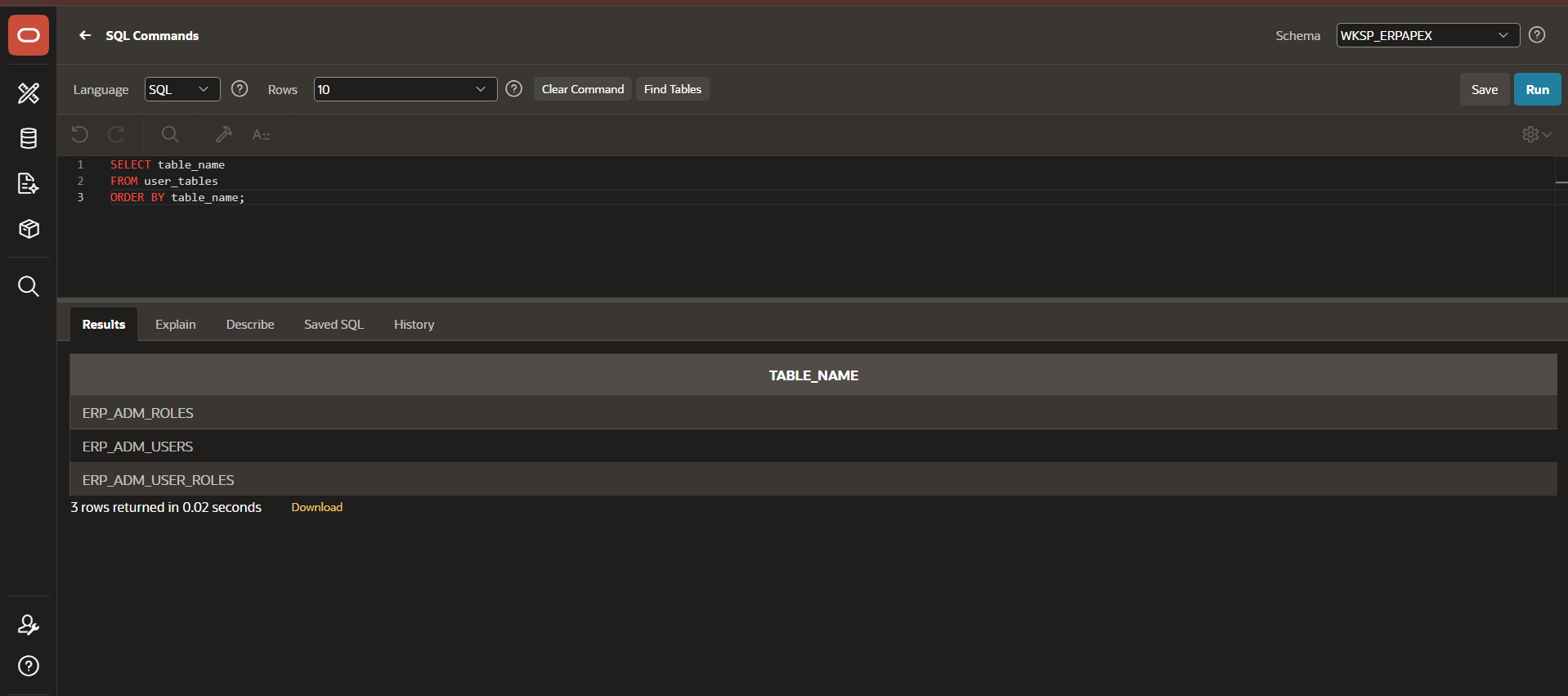
- This same tool becomes invaluable later in the series once we start building actual DDL and PL/SQL for your applications — it’s often faster to test a query here before wiring it into a page.
What’s Next
With application-level configuration and the broader development environment now covered, Week 1 wraps up with the topic everything has been building toward: Basic SQL & PL/SQL for APEX and Creating Your First Application — where we’ll finally put everything together into a working app.
This post is part of a 20-week Oracle APEX training series covering everything from foundational architecture through AI-powered enterprise development in APEX 26.1. Follow along as we work through each topic in order.