
With the page lifecycle now understood, this post covers three practical topics that shape how your pages actually look and calculate values: static HTML content, the template system that controls layout, and computations — a lightweight alternative to full PL/SQL processes for simple value assignment.
"Not every value on a page needs a PL/SQL process behind it — computations exist for exactly the simpler cases."
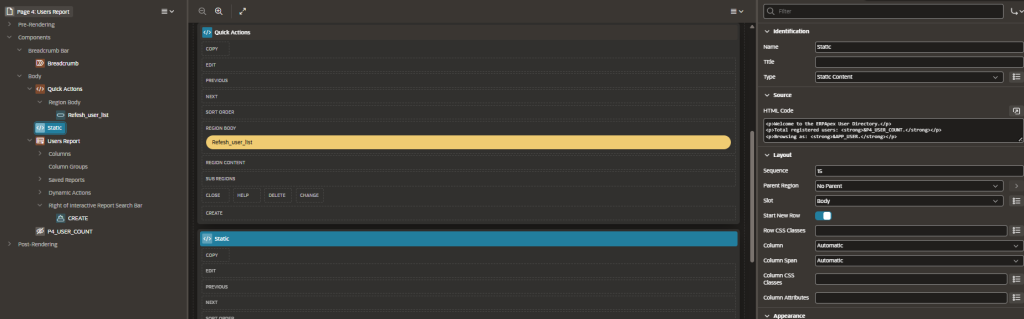
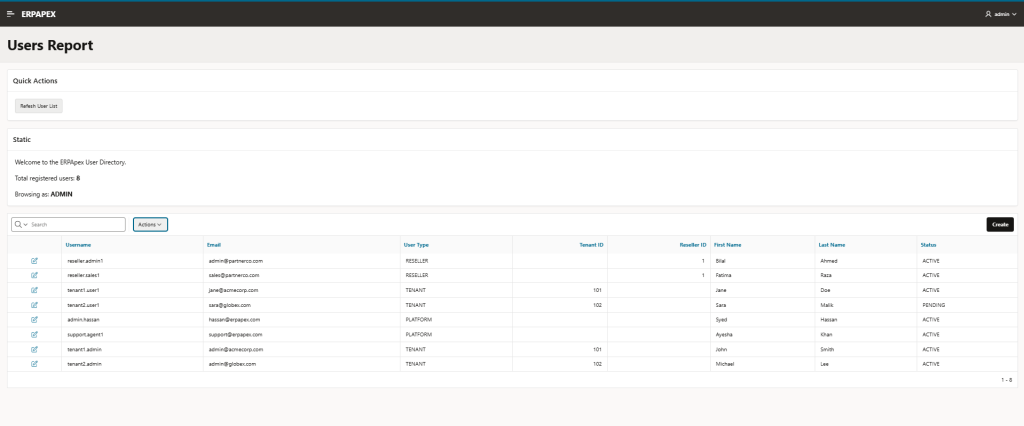
Static content regions are the simplest region type in APEX, but they’re used constantly — for page introductions, instructional text, custom HTML layouts, or embedding content that doesn’t come from a database query at all.
Part 1: Static Content & HTML Regions
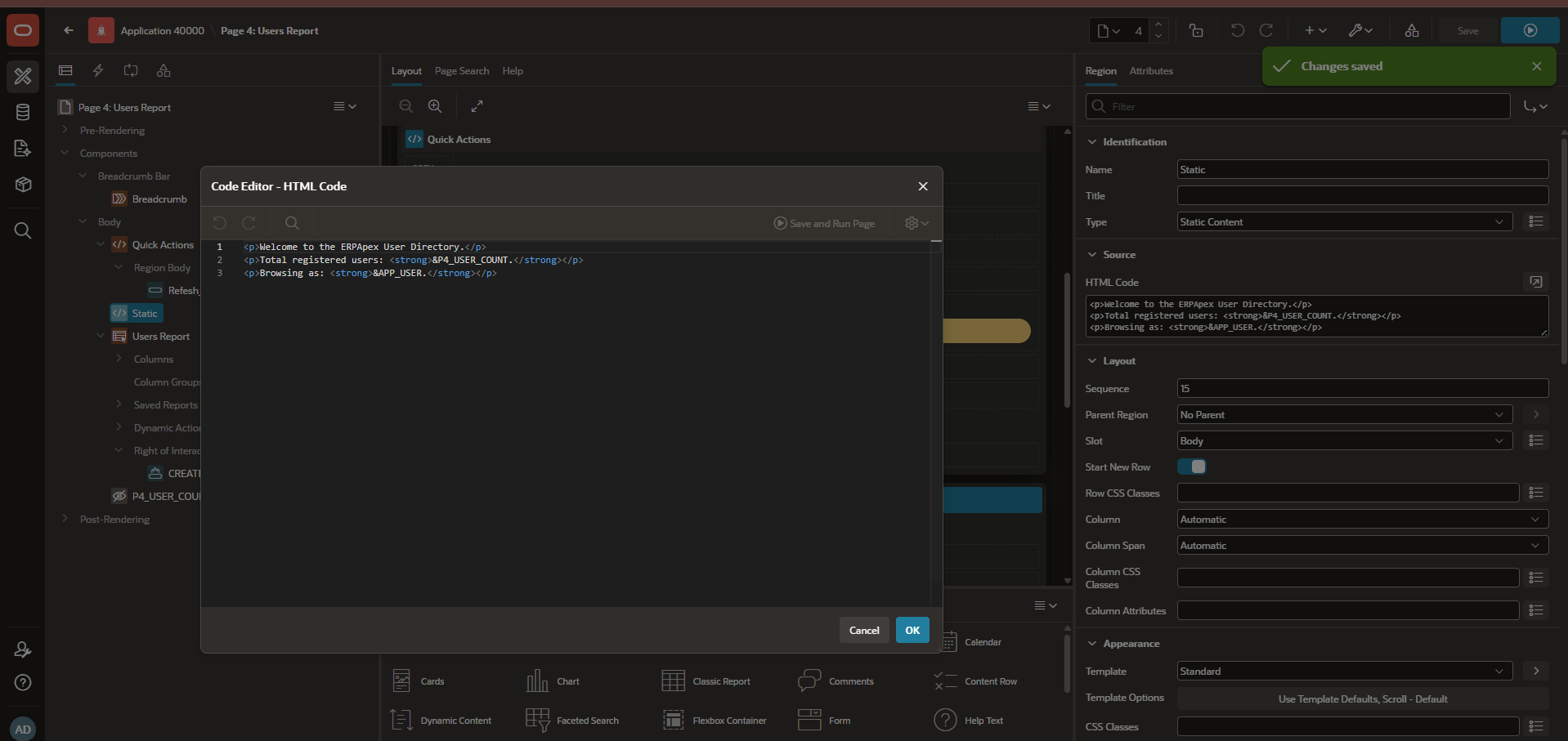
A Static Content region accepts raw HTML directly in its source. This makes it useful for anything from a simple paragraph of instructions to a fully custom HTML/CSS layout block. Item substitution syntax (&P1_ITEM_NAME.) works inside static regions too, meaning you can blend genuinely dynamic content into what’s otherwise static HTML.
Example: A static region on your erp_adm_users report page showing a dynamic count:
<p>Showing users for tenant: <strong>&P1_TENANT_NAME.</strong></p>This renders the current tenant name directly into otherwise-static text, without needing a separate report or query for something this simple.
Part 2: Page Templates & Layout
Templates control the structural HTML wrapper around your regions, items, and buttons — headers, footers, spacing, and grid positioning. APEX separates Page Templates (overall page structure) from Region Templates (how an individual region is wrapped) and Item Templates (how a single field and its label are arranged).
This separation matters because it means changing your entire application’s visual structure — spacing, card styles, borders — often requires editing a template once, rather than touching every individual page.
Where Templates Live
Templates are managed under Shared Components → User Interface → Templates. Your application’s active theme ships with a set of default templates, but you can create custom ones when you need a layout pattern the defaults don’t cover.
Practical tip: Before creating a custom template from scratch, check whether an existing template’s Template Options (configurable directly on the region, without needing a whole new template) already covers what you need — things like removing a border, changing a background color, or adjusting spacing are often just an option toggle away.
Part 3: Basic Computations
A computation sets an item’s value based on a simple expression, PL/SQL function, or static value — without needing a full Process. Computations run during the page’s rendering phase (unlike processes, which typically run during submission), making them useful for values you want ready before the page displays.
Step-by-Step: Creating a Computation
- In Page Designer, right-click Computations in the Processing tree → Create Computation
- Choose the item this computation should set (e.g., a hidden item like
P1_USER_COUNT) - Set the Computation Type — common options include “Static Value,” “SQL Statement,” or “PL/SQL Expression”
- Enter the actual computation — for example, a SQL Statement:
SELECT COUNT(*) FROM erp_adm_users
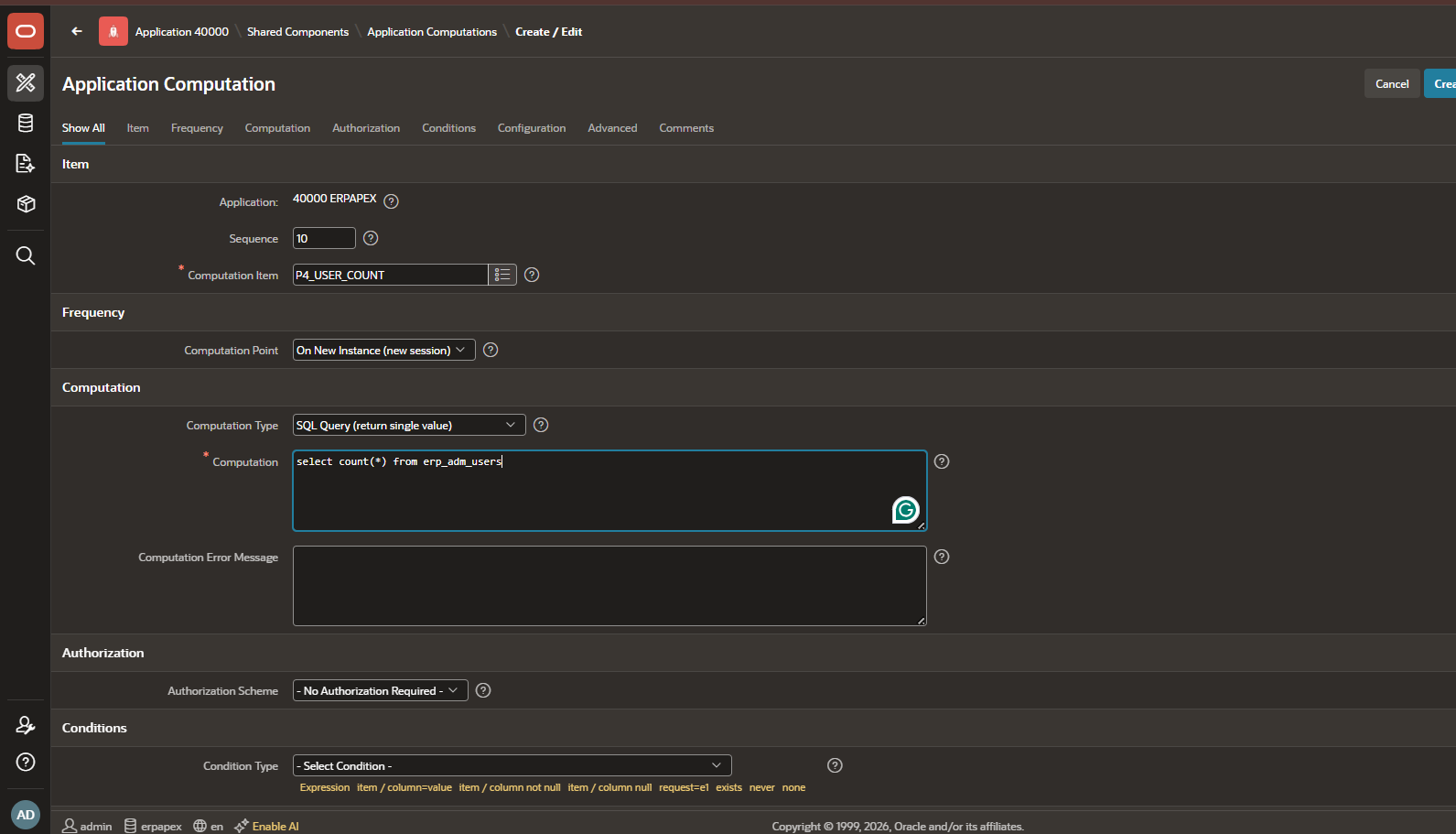
- Set the Computation Point — usually “After Header” so the value is ready before the page’s regions render, letting you reference it in a static region’s text (like the tenant name example above) or as a display-only item.
When to Use a Computation vs. a Process
A quick rule of thumb: if you’re simply setting a value based on a query or expression, a computation is usually the lighter-weight, more appropriate choice. If you’re changing data — inserting, updating, deleting — that belongs in a Process instead, which runs during the submission lifecycle we covered in the previous post.
What’s Next
Next in the series: Branches & Page Navigation and Application Items & Processes — covering how APEX decides which page to show next after a submission, and the difference between page-level and application-level items and processing logic.
This post is part of a 20-week Oracle APEX training series covering everything from foundational architecture through AI-powered enterprise development in APEX 26.1. Follow along as we work through each topic in order.