
With your workspace created, you’re now standing in front of the interface you’ll spend more time in than almost any other tool in your development life: the Application Builder. This is APEX’s home base — the place every application, every page, and every piece of shared logic gets built, managed, and maintained.
Rather than jumping straight into building, it’s worth taking a proper tour first. Knowing where things live before you need them saves real time later, especially once you’re juggling multiple applications across dev, test, and production environments.
"The Application Builder isn't just where you build — it's where you'll spend most of your development life. Learn the map before you need the map."
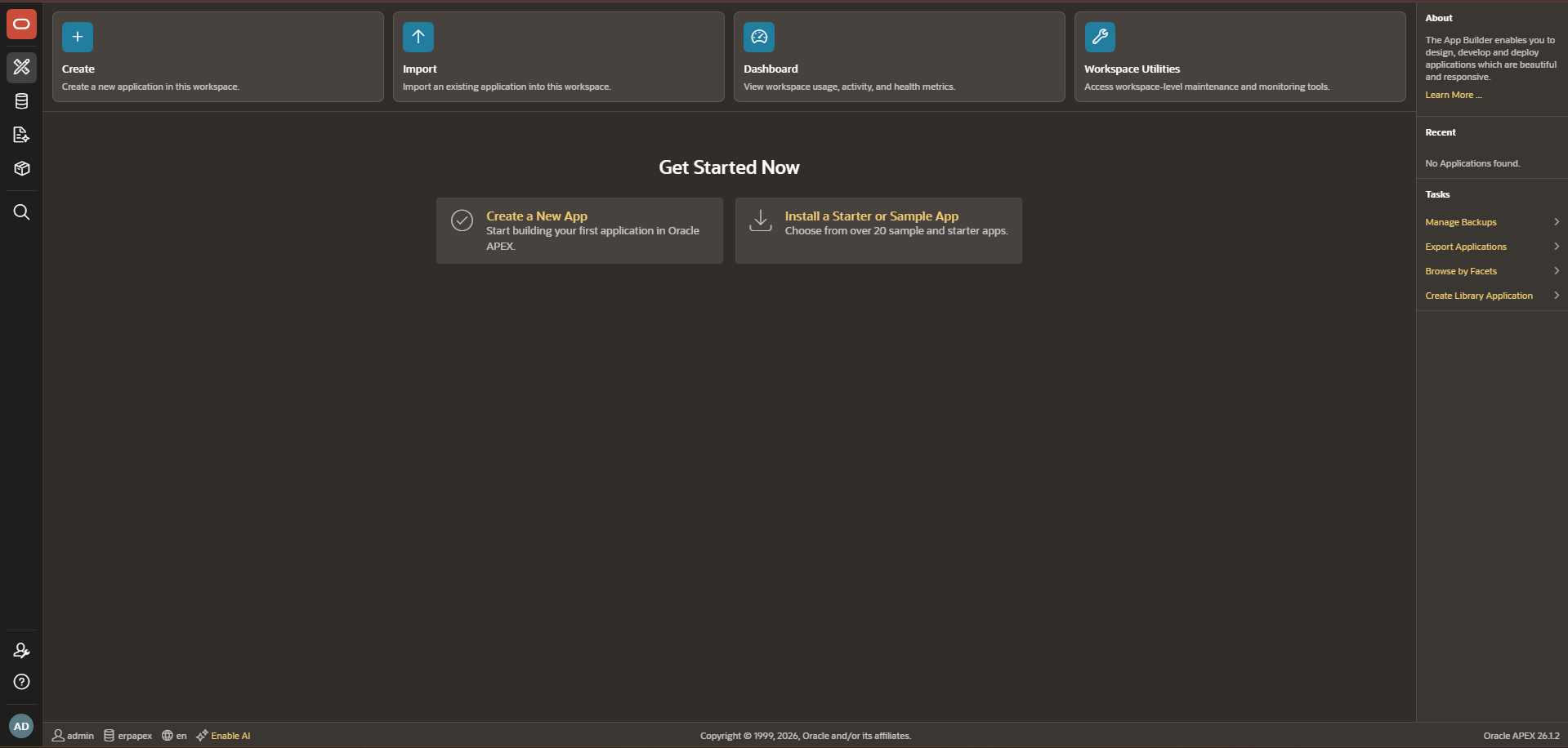
The Application Builder home page is your workspace’s front door. Every time you log in, this is what greets you — a grid or list view of every application that exists within your current workspace. From here, three main actions are always available: Create a new application, Import an existing one, or click into an existing app to continue working on it.
Beyond the application list itself, the top navigation bar gives you access to the areas that support your applications without being applications themselves:
App Builder — the tab you land on by default, showing your applications SQL Workshop — a full suite of database tools (SQL Commands, Object Browser, Utilities) for working directly with the schema behind your workspace, without leaving APEX Team Development — feature and bug tracking tools built directly into APEX, useful if you’re managing development work without a separate external tool App Gallery — sample applications and starter templates Oracle provides, genuinely useful for learning patterns before you need to build them yourself Administration — workspace-level settings, user management, and (for admins) instance-level configuration
Inside an Application: The Real Working View
Clicking into any individual application takes you to a different view — this is where the actual development happens. Here, you’ll find:
Page List — every page in the application, shown with page numbers, names, and types (Report, Form, Chart, etc.). This becomes your primary navigation as an application grows past a handful of pages.
Shared Components — arguably the most important concept to understand early. This is where reusable elements live: authentication schemes, authorization schemes, Lists of Values (LOVs), templates, and more. Anything you don’t want to rebuild on every single page belongs here.
App Builder Toolbar — quick access to Run Application, Utilities (like Advisor, which flags potential issues in your app), and Export/Import for moving applications between environments.
Page Designer: Where the Actual Building Happens
Double-clicking into any individual page opens Page Designer — a three-pane interface that’s genuinely one of APEX’s best design decisions. Understanding this layout now will make every future post in this series click faster, since we’ll be living inside Page Designer constantly from here forward.
- Left pane — the Rendering tree (regions, items, buttons) and Processing tree (validations, processes, branches) for the current page
- Center pane — a live layout preview showing roughly how the page will actually look
- Right pane — property fields for whatever’s currently selected in the left pane or center preview
This three-pane structure stays consistent no matter what you’re editing — a report region, a form item, or a validation rule all use the same left-select, right-edit pattern. Once that rhythm clicks, moving through Page Designer becomes second nature.
A Few Interface Habits Worth Building Early
A handful of small habits pay off disproportionately as your applications grow:
- Use the Page List’s search/filter rather than scrolling once you have more than a dozen pages
- Check Shared Components before building something new — there’s a real chance a similar LOV, template, or authorization scheme already exists and just needs reuse rather than duplication
- Get comfortable with the Advisor tool early (found in Utilities) — it flags broken references, unused components, and common mistakes before they become production bugs
What’s Next
Now that you know your way around the interface, next in the series we’re going deeper into Page Designer Components — breaking down exactly what regions, items, buttons, and dynamic actions do, and how they work together to build a functioning page.